SSH From iPhone With an AI Agent That Runs Commands
The "AI" in most iPhone SSH apps is a suggestion box. You tap a command, copy it, paste it, press enter. Here's what actually running an agent on your phone looks like.
Pop open La Terminal or WebSSH on an iPhone and you'll find roughly the same pattern: a model proposes a command, you review, you paste. It's fine for "show me the syntax for tar," less fine for "figure out why my cron job failed" where the agent needs to look at three logs, notice a pattern, and decide what to check next.
That's the difference between AI assist and a real agent loop. An agent has to run a command, read what came back, and decide the next step — ideally without asking you to copy-paste between windows on a 6-inch screen.
What a real agent loop needs
- Execute. The agent has to call a real shell and get the output back — not just draft a command.
- Read the terminal. It needs to tell the difference between "idle shell", "process still running", "dev server ready", and "stuck at a password prompt." Dumb regex won't do it; you need a classifier.
- State survival. Phones suspend tabs. The session has to survive a 30-second screen-off without killing the agent mid-task.
The setup
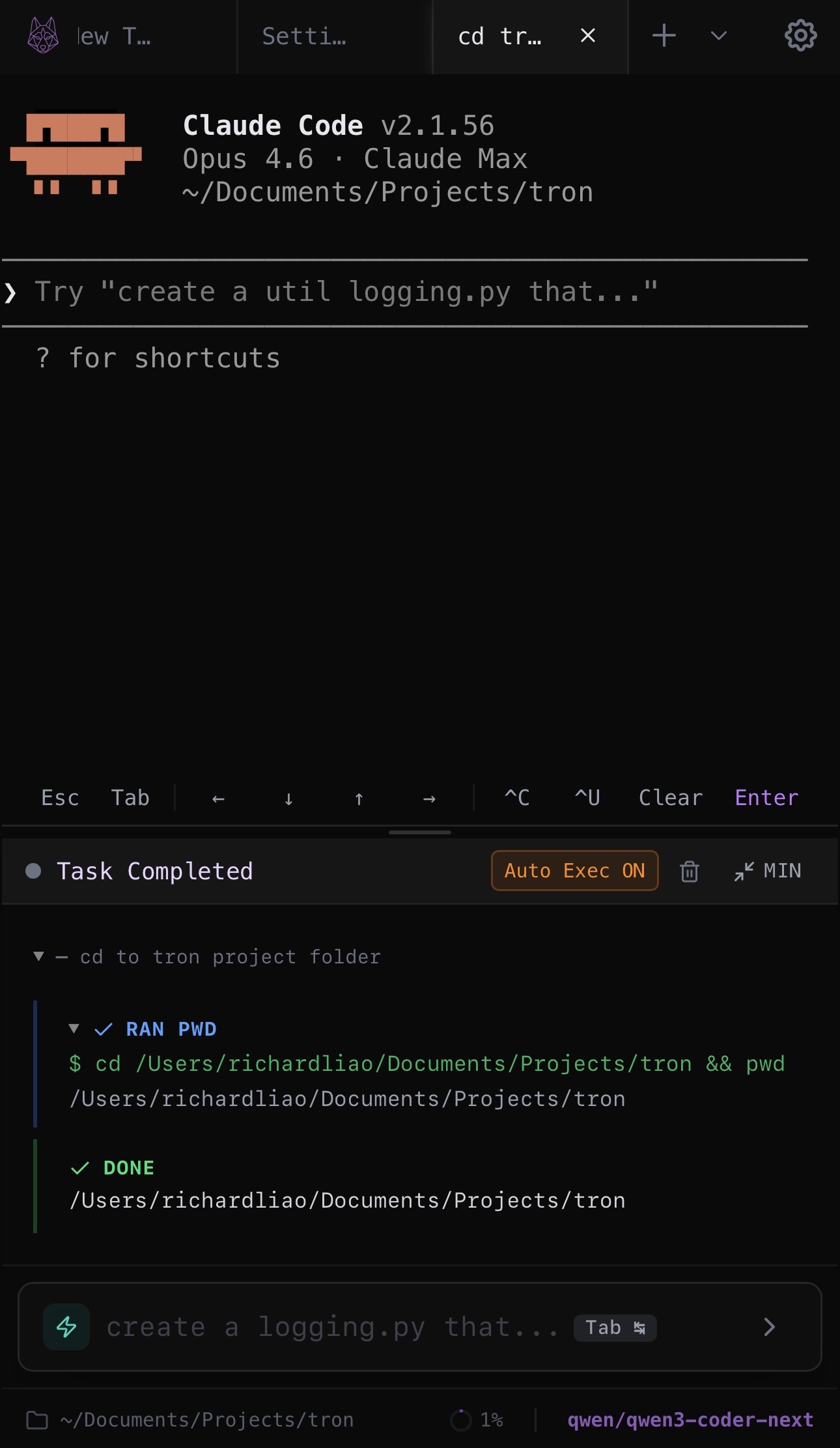
Tron runs as a web
server on whatever box you want to control. The iPhone opens
http://host:3888 in Safari — you get tabs, SSH profiles,
agent overlay, and three input modes (plain terminal, advice, agent).
# On your server
git clone https://github.com/Shadowhusky/Tron.git
cd Tron
npm install
npm run build:web
npm run start:web
Open the URL on iPhone. Add a home-screen shortcut so it feels like an app. Add an SSH profile if you want to jump to a third host from there. Enter your AI key in Settings > AI.
Three modes, one input box
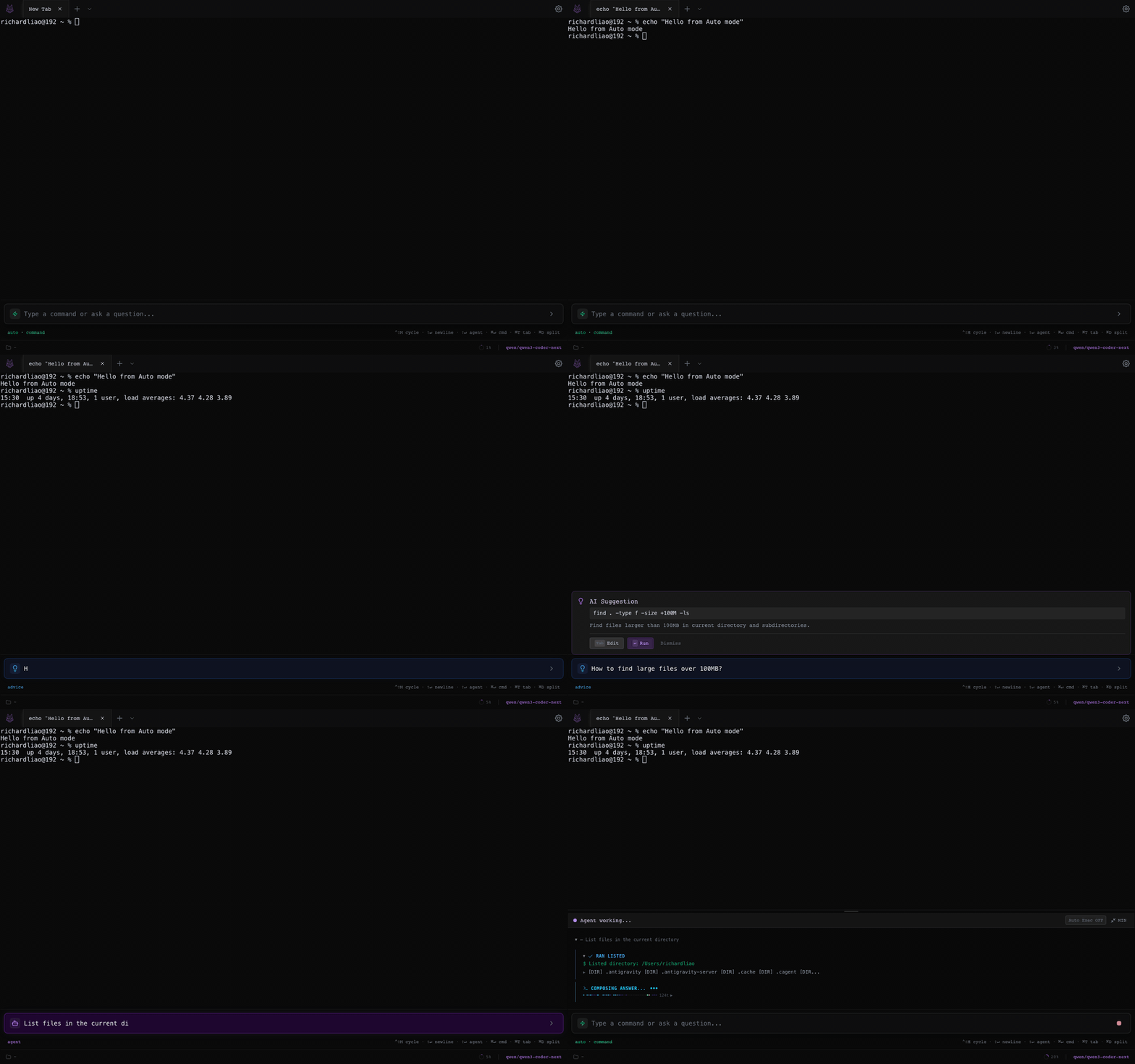
The input box has three modes, because 6 inches of screen doesn't leave room for three separate UIs:
- Command. Runs what you type. Exactly like a regular terminal.
- Advice. AI proposes a single command with an explanation. Tab accepts, enter runs. Good when you know roughly what you want but not the flag names.
- Agent. Full loop. Describe the task; the agent executes, reads results, decides next step. Meaningful for multi-step debugging.
Auto-detect picks a mode based on what you type. Cmd+Shift+M
cycles manually. Single words like ls always go straight
through as commands, so you don't get in your own way.
Mobile-specific things it gets right
Most "terminal on a phone" apps feel bolted on. A few things that matter here:
-
Virtual keyboard resize. When the keyboard opens,
the terminal resizes once and settles — no jittery re-layout every
frame that you see with naive
vhunits. - Touch scrollback. Swiping up doesn't accidentally snap back to the prompt. There's a floating "jump to bottom" button when you're scrolled up.
-
Paste. The clipboard->textarea fallback exists
for iOS where
navigator.clipboard.readText()is flaky. Long-press paste just works. - PTY survives backgrounding. Iphone suspends the tab; the PTY keeps running on the server for 24 hours. When you reopen, the scrollback is restored and the agent resumes where it was.
Security posture
SSH profiles and AI credentials live on your server, in its user data dir — not in a vendor's cloud. When you're using Tailscale or a Cloudflare tunnel there's no public port to get scanned. AI provider traffic goes straight from the server to the provider; your phone never carries keys.
If you want to be more careful, run the whole thing against Ollama on the same box. Then nothing leaves your network at all.
Try it from your phone
Web mode is in the same repo as the desktop app. One install, reachable from any device with a browser.